Introduction
Reach has introduced an expansion of the Pastoral Report feature within the platform to include additional elements to help schools record, manage and securely inform staff, parents and external agencies about safeguarding and injury incidents.
What is Safeguarding?
Safeguarding is the act of protecting people, especially children and vulnerable adults, from harm, abuse, or neglect to ensure their health, well-being, and human rights. In the context of a school it differs from region to region but may be state-wide or national government legislation as to how establishments such as schools have to record and manage incidents where harm or abuse is suspected.
The Pastoral reporting in Reach already provides the core of what is required for recording safeguarding incidents in that a report can be raised about a student, it can be categorised against a specific incident type, staff to be informed can be selected, access to the report can be classified and follow-up actions and interventions can be recorded until the incident is considered resolved.
What is new?
The new additions centered around a number of key areas associated with safeguarding that the existing Pastoral Reports didn’t provide a solution or an adequate solution, leading to some new development and some additional work to existing features.
- New Pastoral Classifications
- Permissions
- Notifications
- Escalation
- Add Student to Group
- External Agencies
- Pastoral Populations
- Import of historic data
New Pastoral Escalation
Pastoral reports in Reach can take one of three classification:
- General Pastoral Report
- Medical Report
- Wellbeing Report
The ability to create, modify and access these type of report are managed by permissions on a user or role basis and also by feature such as medical dispensary or by the boarder summary.
Rather than creating new top level pastoral classifications it was decided that what was needed was an extension to the existing classifications as safeguarding can be also associated with a medical incident or one of wellbeing. There also is a requirement to introduce injury mapping to pastoral reports and similarly this can be applied across all pastoral classifications as well as logged as a part of a safeguarding concern.
Injury mapping also can be applied to the recording of sporting injuries that don’t necessarily require recording as a medical report.
Existing pastoral reports can now be escalated to a safeguarding concern or to record an injury, dependent upon the user having the correct permissions to do so, they also can be escalated to an external agency or the student made a member of a group (see Escalations).
Pastoral Report Access
Access to pastoral reports in Reach is controlled at a top level initially in that a user either has access to pastoral reports via the main menu or they don’t, further restrictions can be placed on what pastoral actions a user can undertake (create a report, access existing reports, etc.) as well as what classification of report a user is visible to them (wellbeing or medical). These permissions are set against a specific user, when a new report is created the creator of the report also has the option to set access of the report to one of three options:
- Visible to all staff
- Visible to those members of staff that have access to ‘Sensitive’ pastoral reports
- Visible to those members of staff that have access to ‘Confidential’ pastoral reports
Access to ‘Sensitive’ and ‘Confidential’ is set at an Role or Individual user level and controls what existing reports can be viewed.
These access controls are placed over the top level report types:
- Standard Pastoral Reports
- Medical Reports
- Wellbeing Reports
Example - A member of staff has permission to Access Wellbeing Notes but doesn’t have the Access Level set to ‘Confidential’ then they will only be able to see Wellbeing notes that are not set as Confidential. In order to see Confidential Wellbeing reports they would need both the permission to access wellbeing notes as well as their access level being set to Confidential.
The new Safeguarding and Injury extensions work within this same permission and access based workflow, so in order for a member of staff to see a Pastoral report that has been escalated to Safeguarding and has the access level set to ‘Confidential’ they will still need permission to view a report that has been escalated to Safeguarding AND have Confidential report access.
All new permissions settings are accessed via:
Main Menu > System Configuration > View System Configuration > Infinity (2500)
Then select the Base Security you wish to set permissions for and the configuration is under:
Notifications
When a pastoral report is created the originator has the ability to choose what individual members of staff, groups or roles to inform about the report. This email notification contained details about the incident, the student(s) involved, who raised the concern, date and time, etc. so that those staff that need to be informed are notified.
New Feature - Remove the report detail from notification emails
Where a pastoral report contains sensitive or confidential information this does not want to be sent as part of an email notification but you still need to inform the required members of staff that an incident has been recorded. A new feature is that you can configure Reach to remove the details of any Pastoral Report sent as a notification, this is a global setting and is configured in:
Main Menu > System Configuration > View System Configuration > General > 2255
If this is set to ‘No’ as in the caption above, this will remove the details from any Pastoral Notification emails that are sent out. If you do wish to have the details included then set this to ‘Yes’.
New Feature - Add Staff by Groups Managed to a Pastoral Report
When creating a new Pastoral report users now have an additional option when selecting which Staff to Inform, in addition to selecting individual staff members and a specific role or group you can now select ‘Use Groups Managed’. Selecting this will populate the Staff to Inform with ALL staff roles that match the House and Year group of the Primary Student.
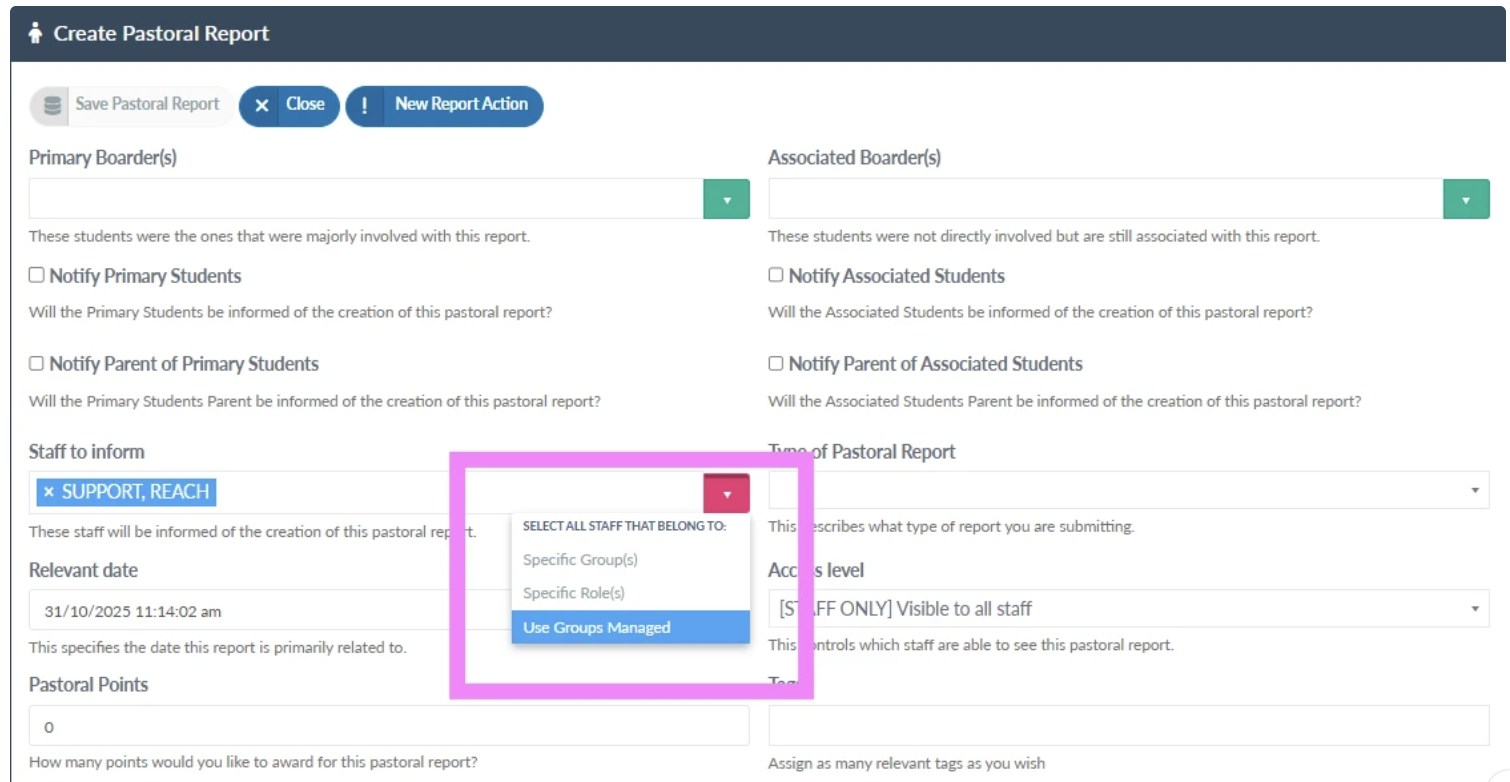
This feature is great if you need to inform all staff in a house or year group about an incident without having to look up which staff you need to include.
New Feature - Default Staff to Inform and Lockdown
Main Menu > System Configuration > View System Configuration > Pastoral
Select the Pastoral Incident Type that you want to set the staff to inform from the list of incident types and select the name from the drop down of staff:
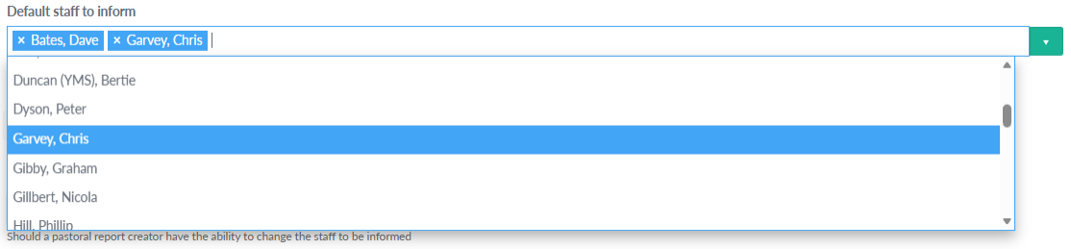
This will then pre-populate the Staff to Inform list when a Pastoral Report is raised and the incident type is selected with the staff you set as default. To then lock this down so that the staff creating the Pastoral Report can’t change the staff that are to be informed, just set ‘Lockdown staff to inform’ to ‘Yes' (default is set to No).
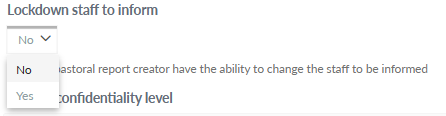
When a Pastoral Report is raised and the incident type selected has default staff to inform set, it will pre-populate the list and if lockdown is set to ‘Yes' it will also grey out the selection box so that the list can not be changed:
The report will then inform the staff from the default list for the incident type selected alongside the member of staff creating the report.
New Feature - Add Role by Groups Managed to an Incident type
When keeping staff informed you may want to limit the notifications to just specific roles within the House and Year group that the student is in rather than ALL staff in the students House.
Main Menu > System Configuration > View System Configuration > Pastoral
There is now a new config item:

Select ‘Yes’ and then in the search box find the roles you want to limit notifications to based upon their groups managed (House and Year Group).
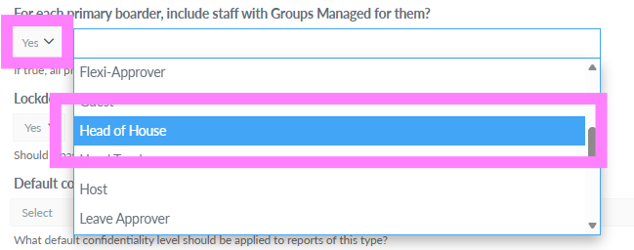
You can insert more than one role, so for instance if you want the notification to go to the Head of House and the Matron for the house that the student is in.
Escalation
An existing Pastoral Report can now be escalated to reclassify the report as a Safeguarding or Injury type or to engage users that are external to the school such as Councillors, Doctors, Police, Local Authorities or Parents and add the student into a group such as a Watchlist.
Pastoral Reports can be escalated more than once so that a Pastoral Report could be escalated to an Injury, then upon review to a Safeguarding Incident and the student then added to a Watchlist before an external Councillor is invited to add their observations to the report.
Set Permissions
Main Menu > System Configuration > View System Configuration > Infinity (2500)
Then select the Base Security you wish to set permissions for and the configuration is under Pastoral
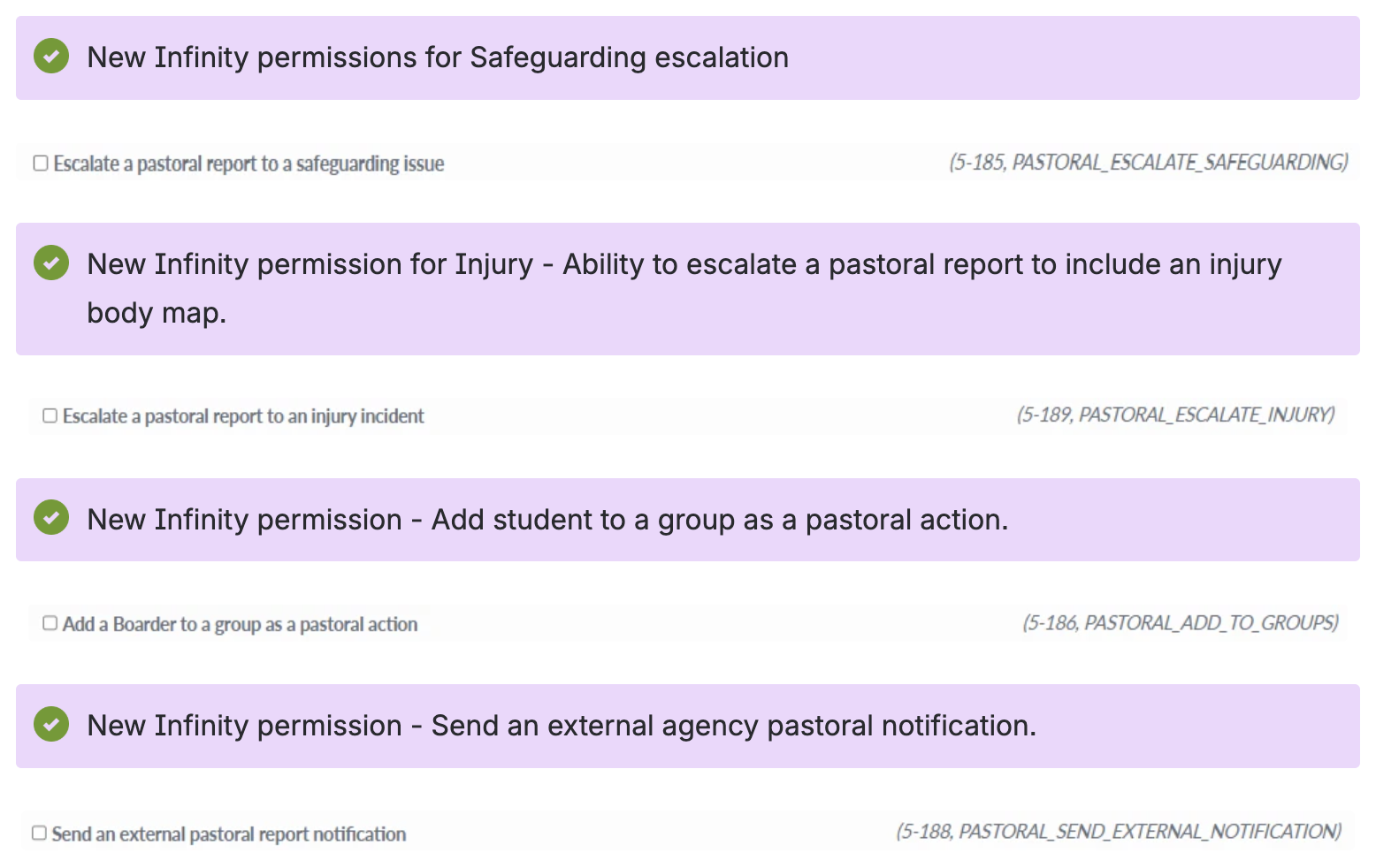
Escalate a Pastoral Report
New Feature - New Report Action
When a member of staff raises a new Pastoral Report and they have the permissions set to escalate a Pastoral Report they will see a the ‘New Report Action’ button:
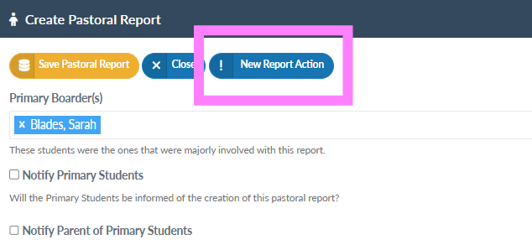
Pressing this button will bring up the escalation options for the Pastoral Report:
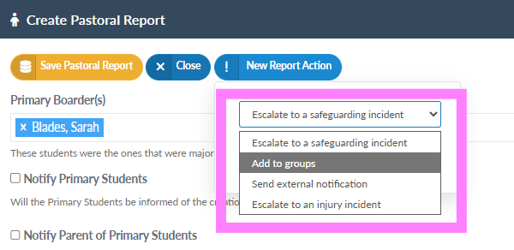
Only the escalation types that the user has set in their permissions will be visible as an escalation option.
Escalate to Safeguarding Incident
New Feature - Staff can escalate an existing Pastoral report to Safeguarding
Escalating a Pastoral Report to Safeguarding does two things:
- It sets the Pastoral Report as a Safeguarding type and applies access permissions accordingly.
- Gives the option for the member of staff that is escalating the Pastoral Report to remove the creator of the report from further notifications:
Firstly Click on ‘New Report Action’ and select ‘Escalate to a safeguarding incident’ from the drop-down menu and click on ‘Add’:
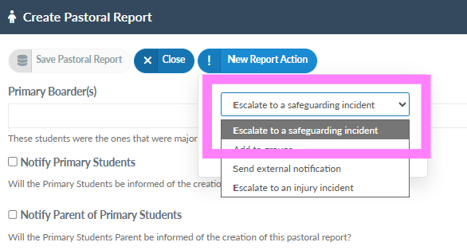
Then click on the new ‘Safeguarding Permissions’ tab that appears:
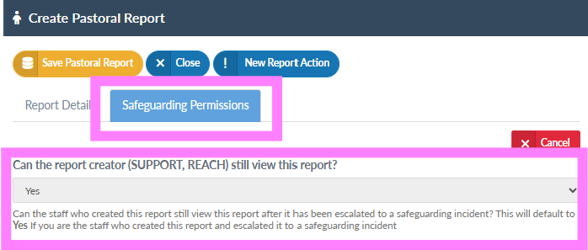
Select ‘Yes’ or ‘No’ dependant upon if you want the creator of the report to still be able to view the report after escalation.
If you are the creator of the Pastoral Report and have escalated to Safeguarding then you can not change the visibility of the report.
Once saved the Pastoral Report then is escalated to a Safeguarding report and can only be viewed by staff with permission to View Safeguarding Reports.
Escalate to an Injury Incident
New Feature - Escalate to record an Injury
If a Pastoral Report has been raised that requires the recording of an Injury, staff can escalate the Pastoral Report to include Injury Mapping giving a visual record of any injury on the student.
Firstly Click on ‘New Report Action’ and select ‘Escalate to a safeguarding incident’ from the drop-down menu and click on ‘Add’:
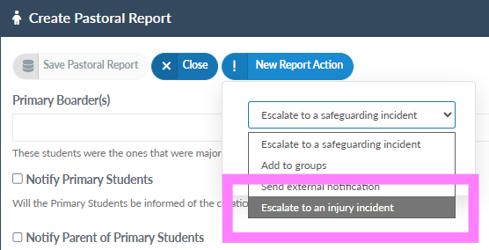
Then click on the new ‘Injury Form’ tab that appears:
You can now adjust the Marker Size and record any areas where an injury has been observed:
Injury Forms will only be visible to Staff that have the permission set on their account to view Pastoral Reports that have been escalated to an Injury Form.
External Agencies
New Feature - Staff can escalate an existing Pastoral report to enable reporting by an external agency
A school has a duty of care towards their students and that duty of care will typically include staff at the school but also the help and collaboration of agencies that are external to the school such as the Police, Doctors, Social Care services, Councillors and parents. Staff can choose to include these external services in a Pastoral Report and invite them to contribute directly to an incident and record their additional notes follow-ups and interventions giving a single, clear chronological record.
In order for a contact from an external agency to be invited to contribute to a pastoral incident they MUST have a validated account on Reach. It is suggested that the school creates a new External User role and then any external contacts are set this new role.
Firstly Click on ‘New Report Action’ and select ‘Send external notification' from the drop-down menu and click on ‘Add’:
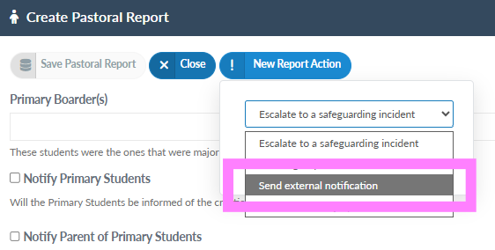
Then click on the ‘Send External Notification’ tab that will appear:
Firstly, select the external contact that you want to contribute to the Pastoral Report.
Then select whether the external contact can view any additional notes aside from the initial report details:

and finally if they want the external contact to be able to submit an additional log entry:

This feature can be used to just inform an external agency of an incident rather than to also contribute.
The external contact will then receive an email similar to this:
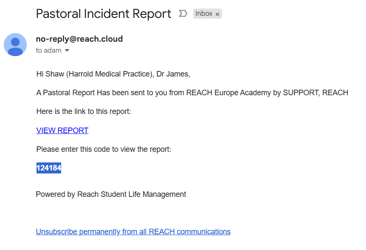
They will need to click VIEW REPORT and will then be prompted to enter the code in order to proceed at which point they will be presented with this screen:
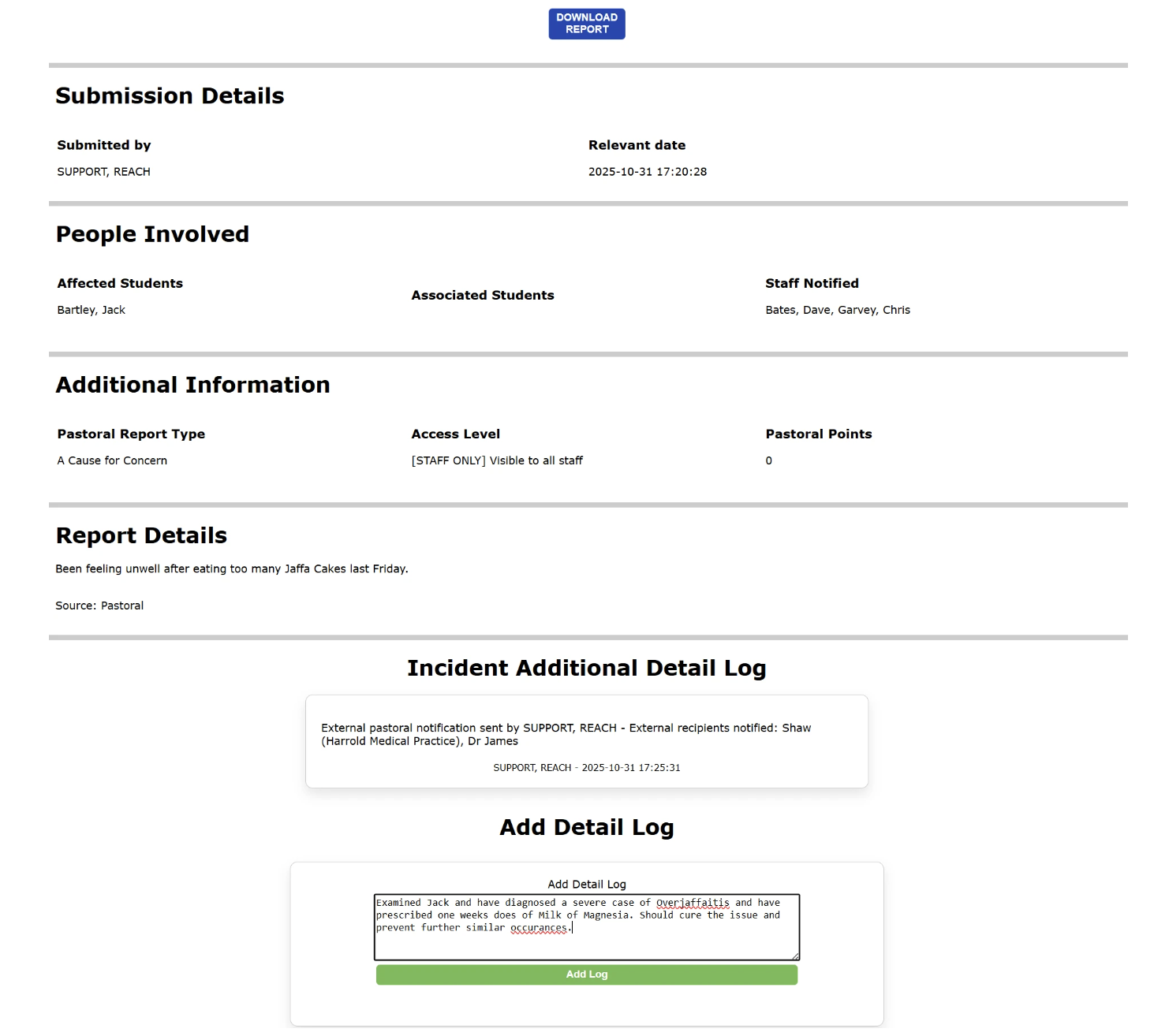
If the invite was set to not show additional logs or for the external contact to not be able to submit additional logs then those parts would be missing from this screen.
The external contact in this case can see additional notes and has been invited to add additional logs and so can enter their notes and then submit them into the Pastoral Report.
The details submitted by the external contact will then be recorded as additional details in the Pastoral Report, this also includes the action to send the external contact an invite to contribute and when it was sent and by whom.
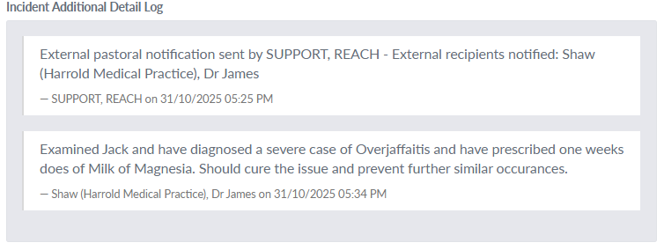
You can invite as many external contacts to contribute to a Pastoral Report at any time, just open the Pastoral Report that you want to invite an additional external contact to be informed or contribute and click on ‘Send External Notification’:
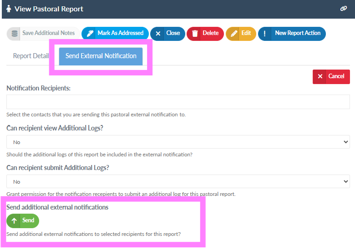
Select the external contact that you want to send notification to from the ‘Notification Recipients’ dropdown and then set whether you want them to view the additional detail logs and/or submit additional detail logs and then click on ‘Send’.
Add Student to a Group
New Feature - Staff can action an existing Pastoral report to add a student to a group
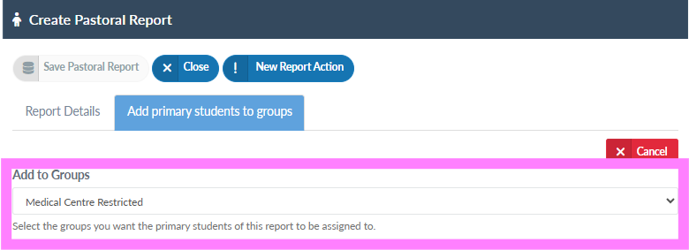
Staff may want to add a student to a specific group within Reach such as a Wellbeing Group or Watchlist, a Pastoral Report can be actioned to add the student to a specific group:
Firstly Click on ‘New Report Action’ and select ‘Add to Groups’ from the drop-down menu and click on ‘Add’:
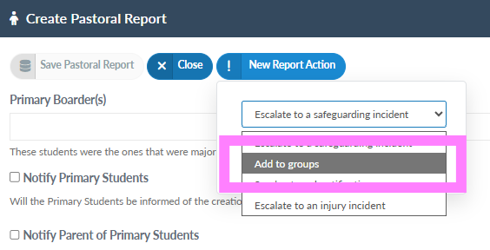
Then click on the new ‘Add primary student to group’ and select the group you wish to add them to from the dropdown list:
Pastoral Populations

New Feature - Pastoral Populations
Pastoral Populations have been introduced so that schools can control who, after all other access controls are in place (confidentiality, pastoral report type), has final visibility of a report.
This can be used to broaden the criteria of which pastoral reports will be visible based upon:
- Role
- House
- Year Group
- Group
- Attribute
- Gender
Populations of users can then be pulled together into a dynamic list based upon the criteria set, for example all users that have the Role ‘Students’ that are in House ‘York’ that are in Year ‘10’ and are ‘Male’. A list of users are then displayed as belonging to this Population , users can also be explicitly excluded from the population, for example exclude any Male, Year 10, Students from York that belong to the 'Prefects’ group.
Main Menu > People Management > Populations
Give the Population a Label and then work through the drop down options to create the group you require.
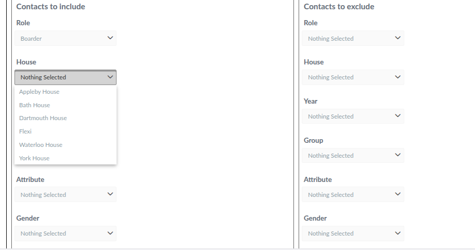
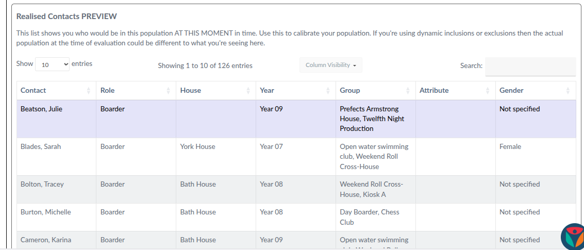
As you work through the options, Reach will automatically show you what students will be included:
Once you have created your population you then apply it to the staff that you want the population to affect when they view Pastoral Reports, so for example if you want the House Parents in York House to only see Safeguarding Pastoral Report types then you apply the Population to the configuration for the members of staff that this applies to.
Main Menu > People Management > View Contacts
Find the user that you want to apply this population to, then click on the ‘Security’ tab and at the bottom of the right hand column under ‘Populations’ pick the relevant population from the drop down selection.
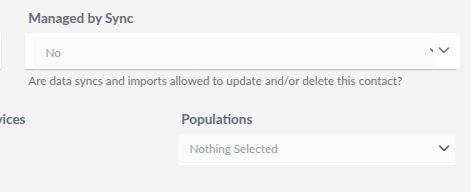
When the user then goes to view Pastoral Reports that are in the system they will only see those that the selected Population allows, which in this case would be the Year 10 boys in York House*
*If any other access controls are in place, such as the report is set to only be accessed by people that have ‘Confidential’ access set then these controls will be enforced before populations take effect.
Import of Historic Data
Reach now has the ability to bulk import Incident records from other systems that a school may have used prior to migrating to Reach to give a consistent and compete historical record for students. The school will need to request a bulk export from their current provider, normally in the form of a Json file or CSV.
List of tested importers:
